Knowledge Article
SailPoint Proctored Exams Test-Taker User Guide
Author
laura_rosenberg
SailPoint
Proctor360 Test Taker Guide
For additional tips or troubleshooting please reference https://support.proctor360.com/hc/365012637
Important Notes:
You must schedule your exam time through Proctor360 48 hours prior to the date you want to sit for the exam. If you wish to sit for the exam within that 48 timeframe, you will have to pay a separate fee.
If you do not connect with your proctor or are 15 minutes late, your exam session will be considered a no-show.
Proctor360 Test Taking Rules
Please visit the test taking rules guide here for a detailed description of all rules and expectations when sitting for the exam.
Exam Scheduling:
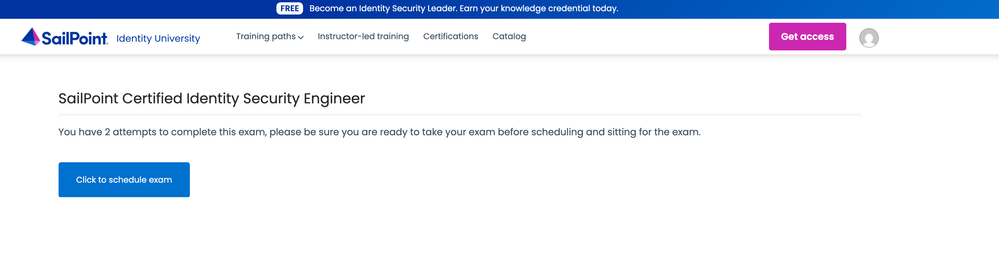
Once you are ready to schedule your SailPoint certification exam (after already purchasing/enrolling in the exam) you will navigate to Identity University, go to "My Profile" and locate the exam name and click into it. You will see the page below and select "Click to schedule exam". You will be allowed 2 attempts per exam enrollment.
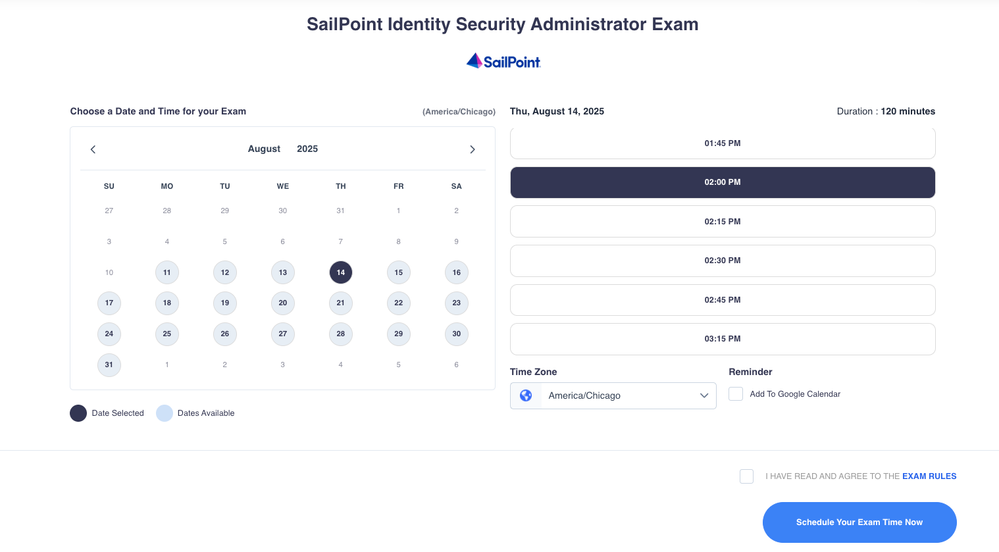
You will be then taken to Proctor360 to select an available time/date to sit for your exam. After you’ve selected the date, time, and timezone, make sure to check the box to read the exam rules and conditions. Then select the "Schedule Your Exam Time Now" button to proceed.
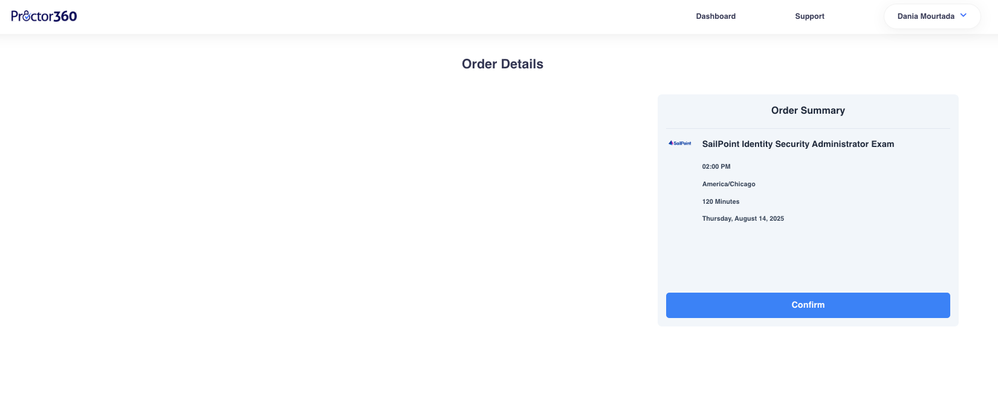
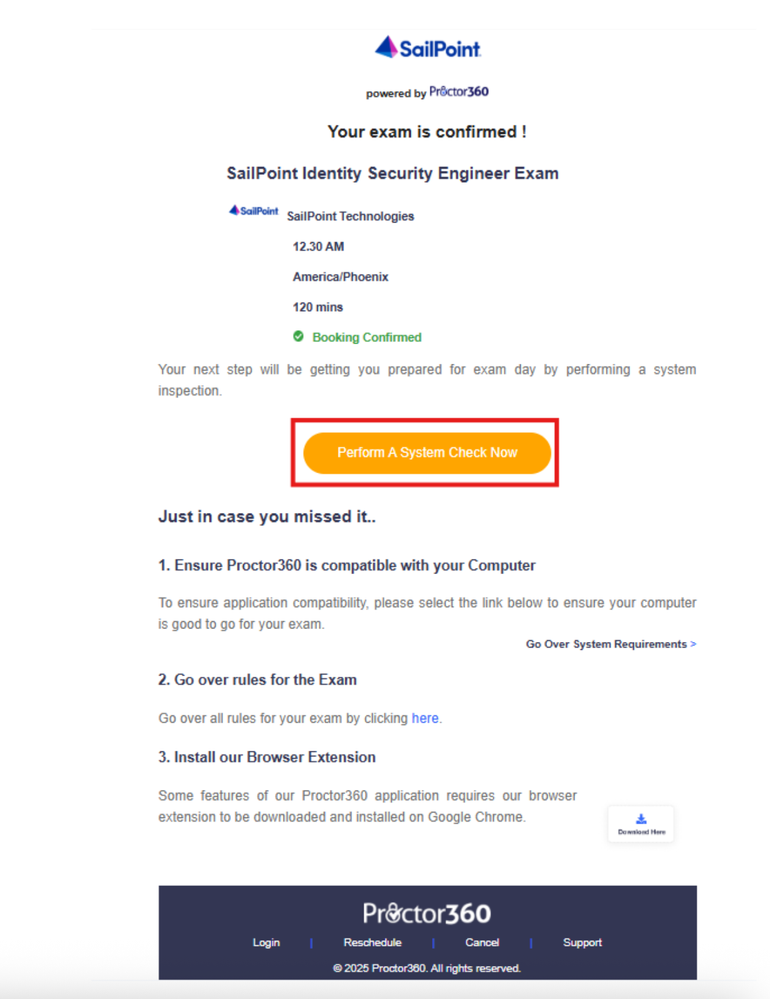
Your appointment will be confirmed with the next screen. Shortly after, you will receive an email confirmation from noreply@proctor360exams.com. This email will contain information on how to prepare for your upcoming exam. If you do not receive the email confirmation, please be sure to check your spam or junk folder.
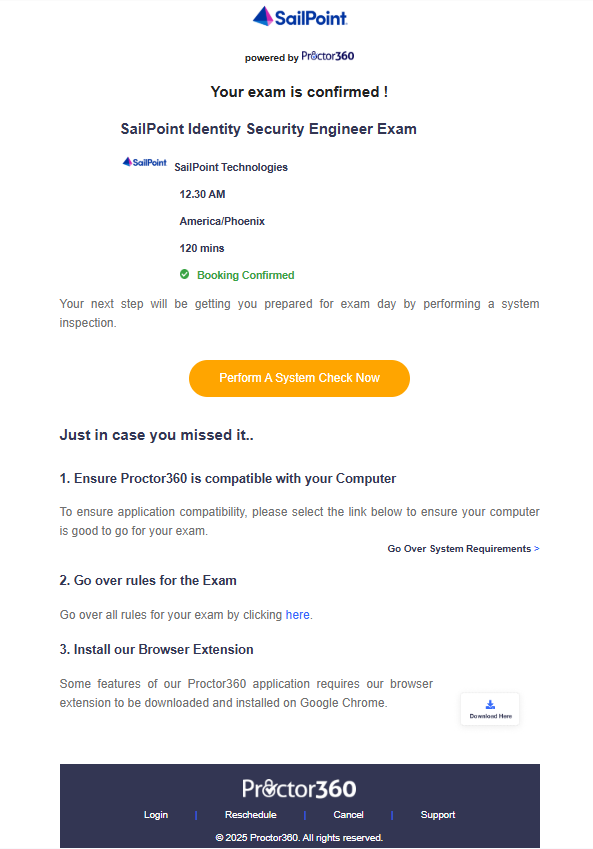
The e-mail will contain information confirming the scheduled time of your certification and instruct you to complete a system inspection before you sit for the exam.
Exam Rescheduling:
To reschedule a Professional Certification exam that is proctored, you can log into your Proctor360 account or access it through the confirmation email, select the Dashboard tab and click "Reschedule".
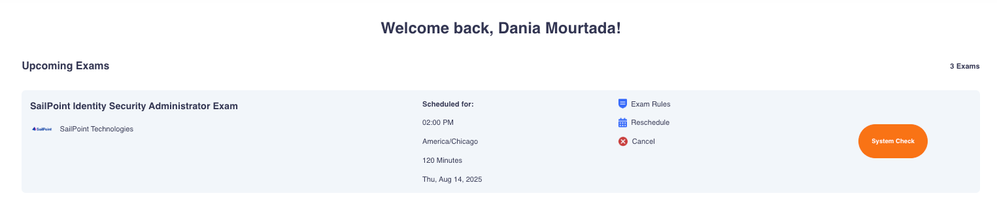
If you are outside of the 48 hour window to when you are supposed to sit for your exam, you can reschedule it free of charge through Proctor360 by going to your Student Session page and selecting Reschedule.
If you are rescheduling within the 48 hour window, you can reschedule through Proctor360 for a $20 USD fee.
System Inspection:
Please find system requirements here: https://proctor360.com/page/system-requirements and additional FAQs here: https://proctor360.com/faq.
This process will help diagnose any possible issues prior to testing day. It is highly recommended to complete the system inspection as soon as possible.
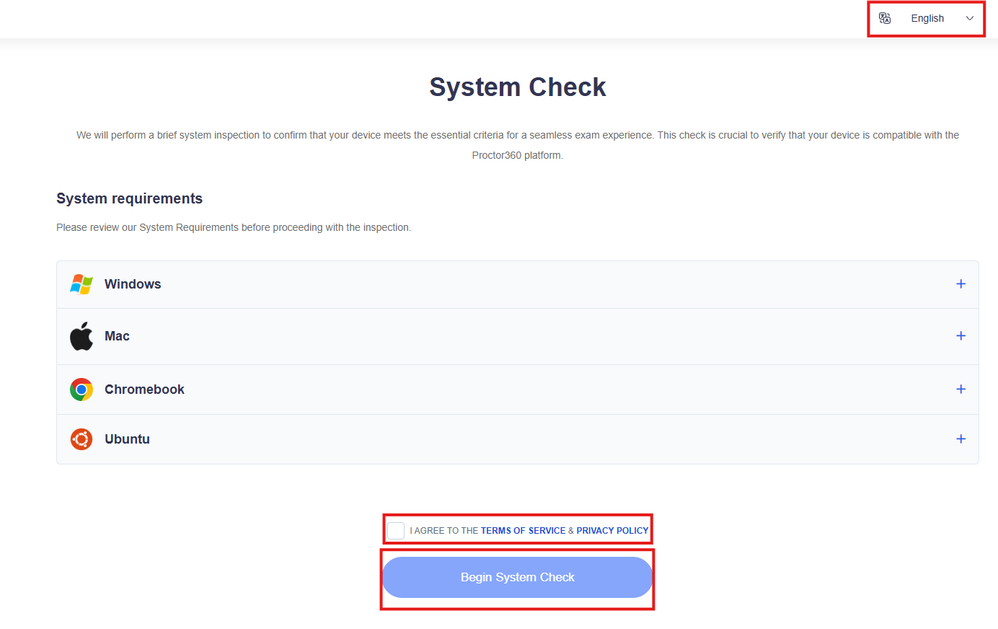
The first page within the system inspection will include basic information on the system requirements, as well as our privacy policy. Once you have reviewed the information, select “Start System Inspection” to continue. If your native language is something other than English, there is a drop down that will translate our platform to the language of your choice in the upper right hand corner.
Within the first step, we will be verifying that your microphone works properly. Each step will include troubleshooting links on the left hand side of the page, as well as a link to contact Proctor360 support for assistance.
Once you hear the music, please select “Yes.”
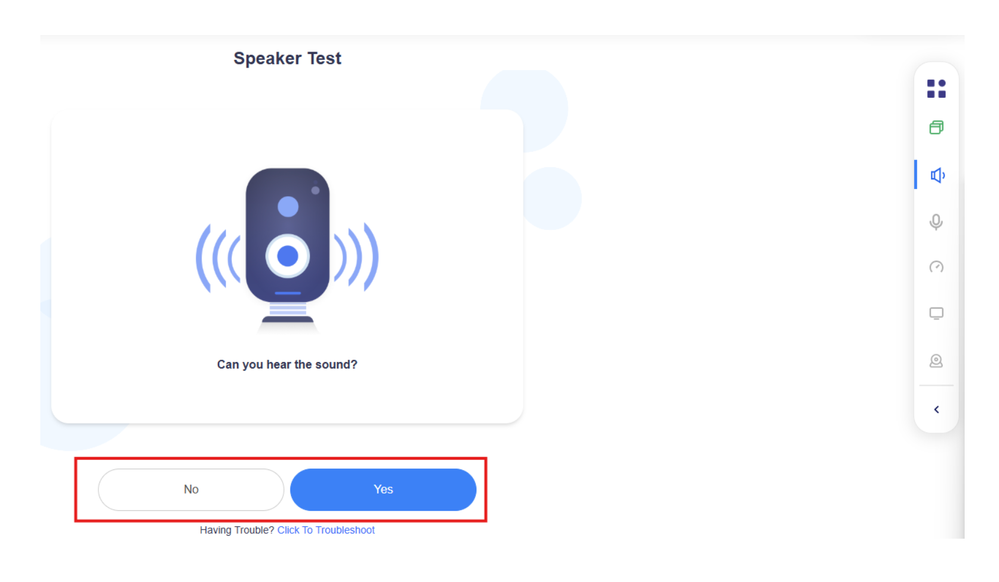
Step two will confirm if your speakers are working properly. If you can hear the music, select the “Next” option and continue by clicking on “Next” when it appears.
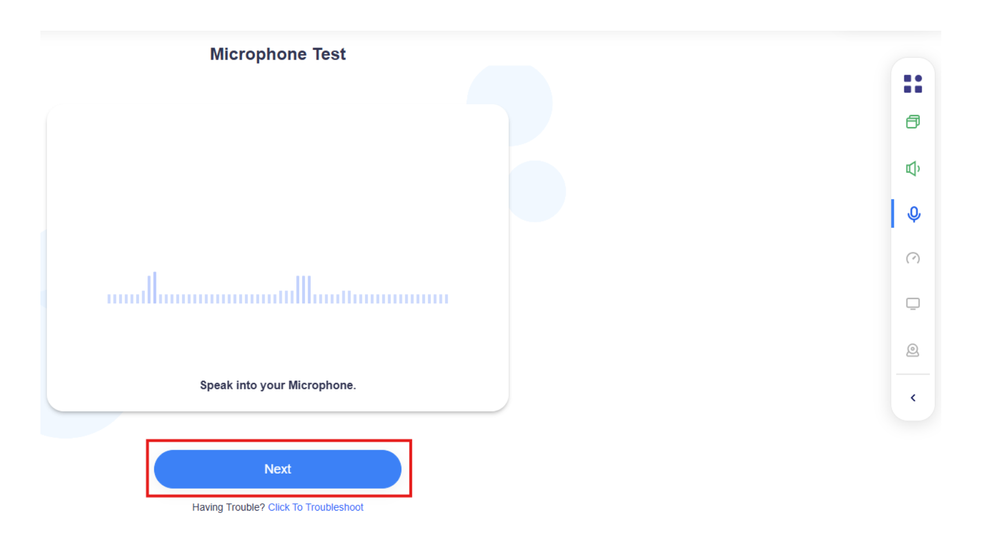
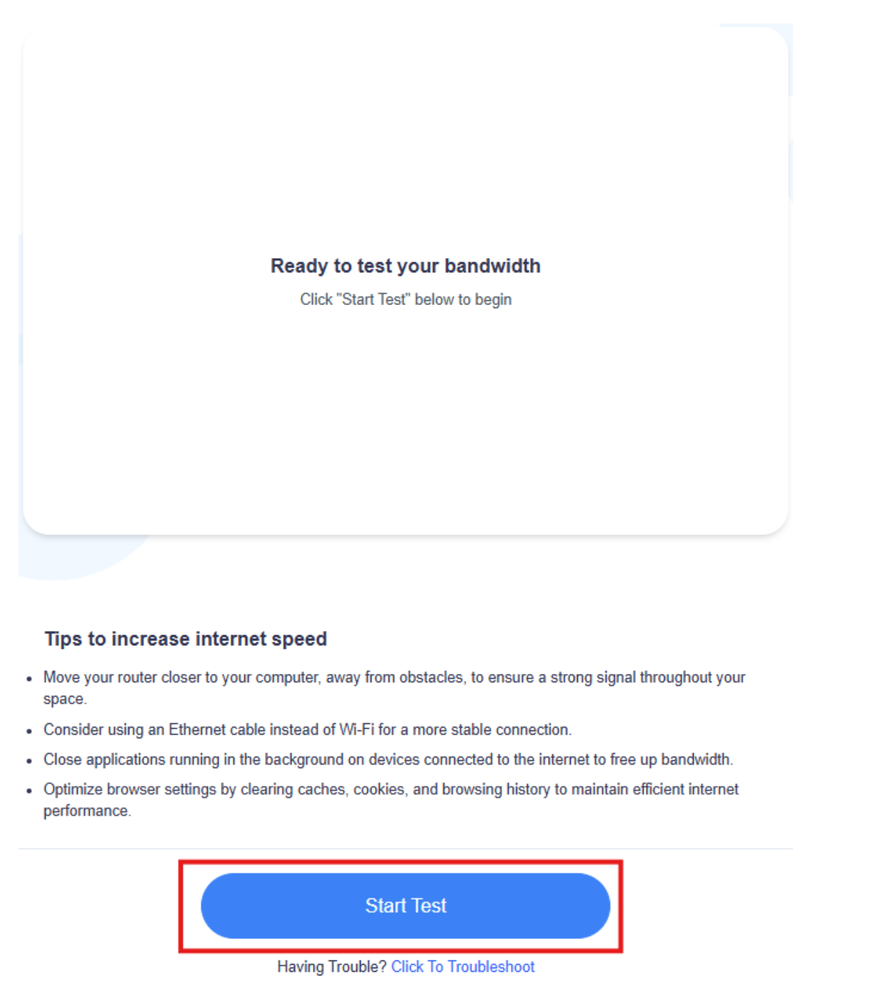
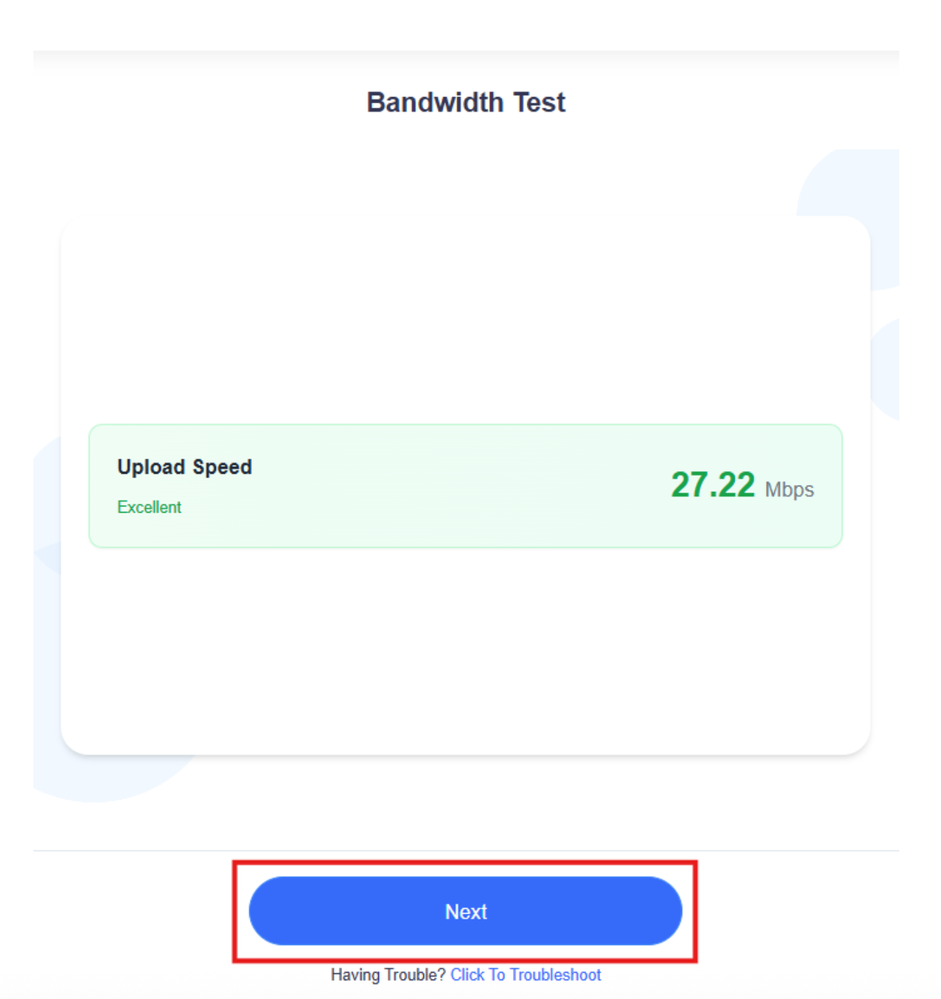
Next you will receive information about the minimum requirements for your connection speed. For the best experience during your exam, it is recommended that you meet the minimum.
Select “Start Test” to proceed with the system inspection.
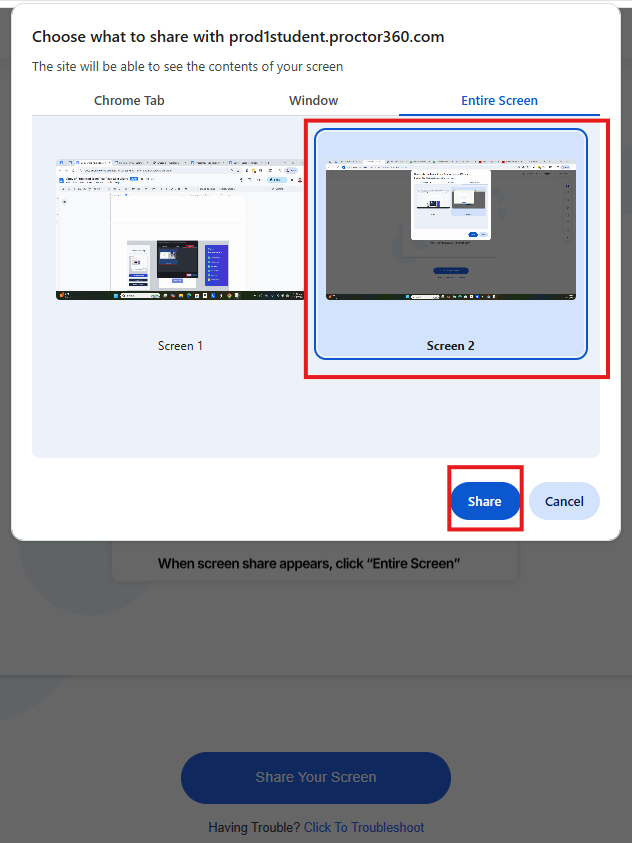
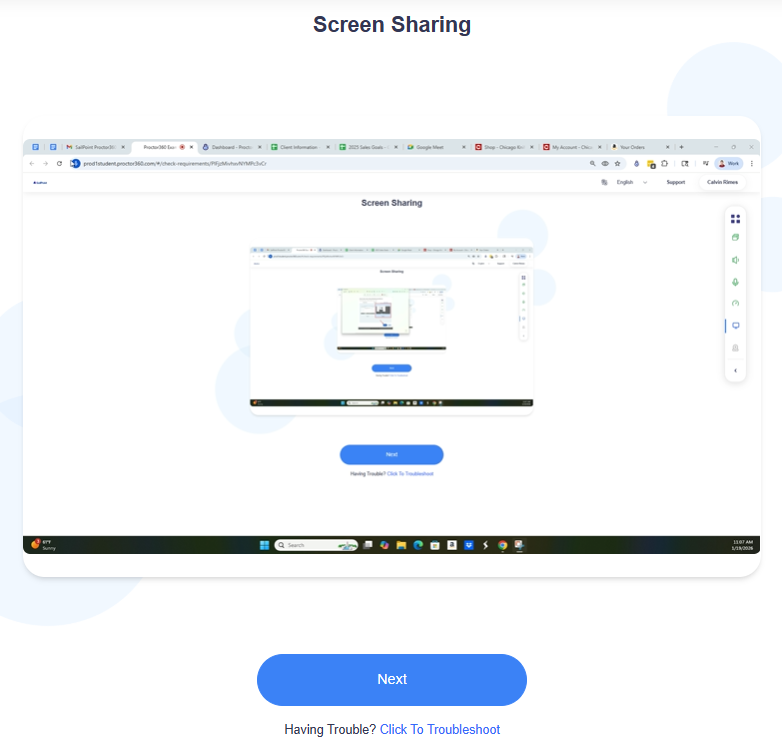
The next check will be verifying that screen share works. There are three steps for this process. Firstly, please be sure that the “Entire Screen” option is selected on the top right corner. Your screen should be visible as an option, you’ll need to left click your available screen to select it. Once these steps have been completed, the “Share” option will become available for you to move forward.
You will receive verification of your screen share. Click “Next Steps” to proceed to the last step.
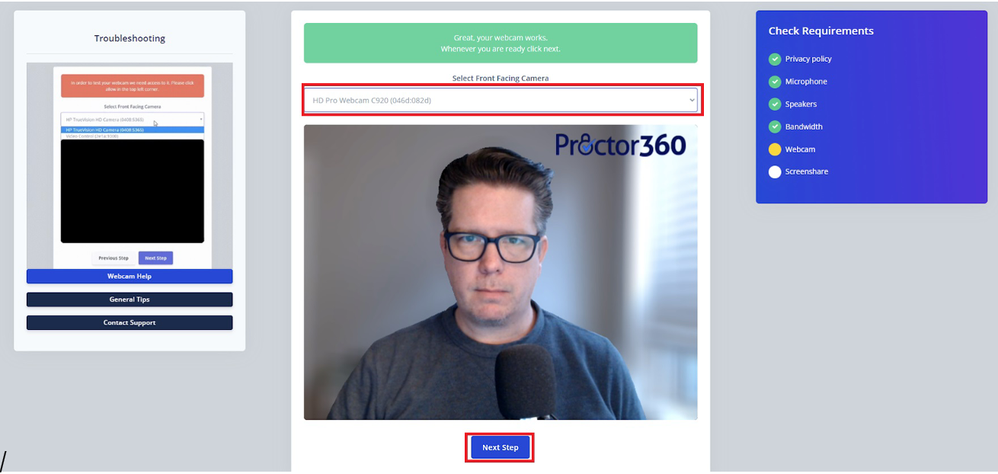
The last step we’ll make sure your camera is working properly. Please use the dropdown at the top of the screen to select the appropriate camera. When you’re able to see yourself, proceed by clicking the “Next Step” button.
Please be sure that you enable your camera and “Allow” it on your web browser. There are troubleshooting tips as well as a way to contact our support for further assistance.
You’ve now successfully completed the system inspection! You will receive an additional e-mail from noreply@proctor360exams.com on how to connect to your exam on test day.
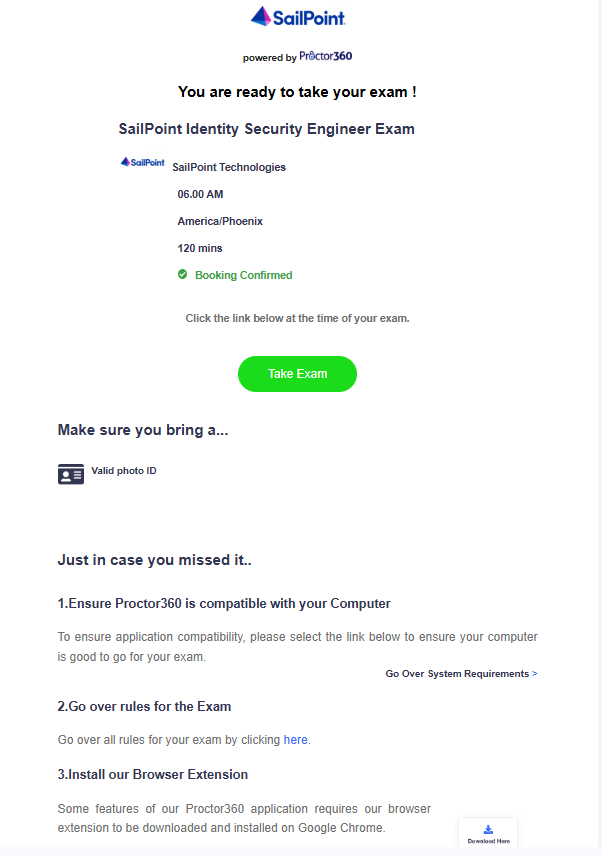
After completing the system inspection, you will receive another email confirming you are ready to take your exam. You can follow the instructions from the email to check in for your exam on your scheduled date and time.
Upon completing the exam, we recommend removing the Proctor360 plugin.
Exam Results
The exam itself runs on the Caveon Scorpion testing engine. Once the exam is complete you will see a Score Report that shows whether you passed or failed the exam. It also shows your relative performance on each of the major exam topics from the candidate profile. You may print the report or email it to yourself for future reference. If you do not see your score report, you can request this by emailing training-help@sailpoint.com.
After you complete your exam, please allow 5 business days for your exam session to be reviewed and for your final results to be shared from Identity University. You will only see results as a pass or fail. If you passed, you will be issued a SailPoint verified digital badge two to three days after the email.
Due to the nature of the proctoring review process, neither Proctor360 nor Identity University will be able to accelerate this step to finish sooner, so please plan accordingly.
Exam Retake
For instructions on how to retake your exam in the case your registration expires your you are unsuccessful, please follow our guide here.