Knowledge Article
Knowledge Credential Test Taker User Guide
Author
dania_mourtada
SailPoint
- How to register for an Identity University account:
- How to register for a Knowledge Credential exam on Identity University:
This guide is to help you when registering for a Knowledge Credential exam and what to expect when taking the exam.
How to register for an Identity University account:
If you have an existing Identity University account, you can disregard this section. If you do not have an account, create one by following these steps:
Step 1: Navigate to Identity University and select “No account? Register now!”
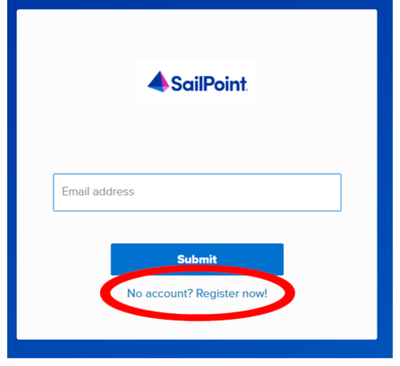
Step 2: Read and accept the SailPoint Terms of Service and click Continue.

Step 3: Create your SailPoint profile by filling out the required information and clicking Submit.
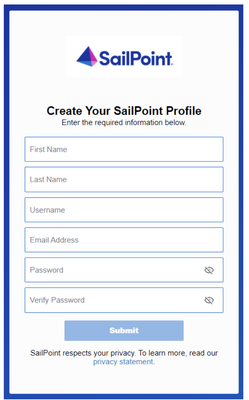
How to register for a Knowledge Credential exam on Identity University:
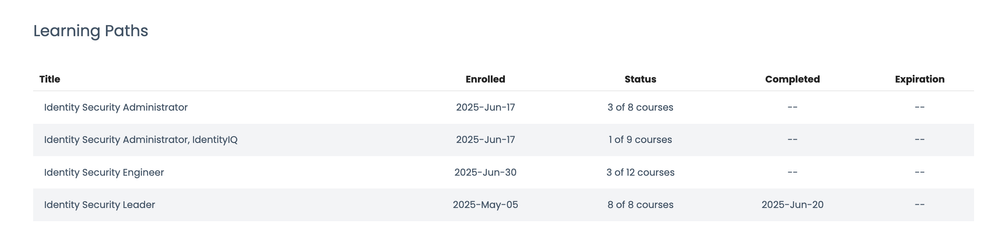
Step 1: Register the learning path associated with the Knowledge Credential. Once you are registered, you will see the path appear under "My Profile" --> "Learning Paths". You must complete every training listed in the path to unlock the Knowledge Credential exam.
Step 2: Upon completing all the required training in the training path, click into the exam.
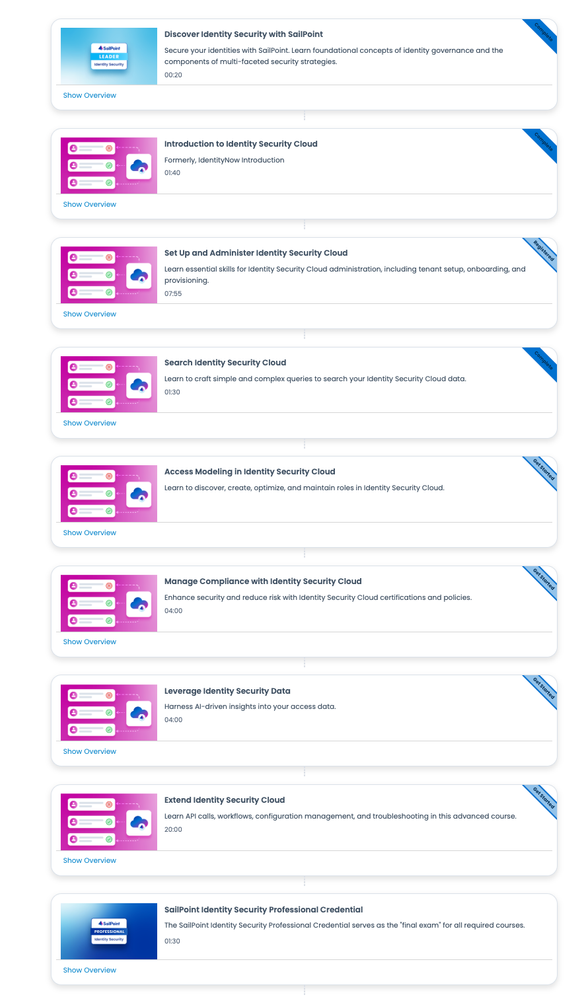
Step 3: The system will check to make sure you have completed al the required trainings in the training path. You will see the red banner if you have not completed all the pre-requisites and are attempting to take the Knowledge Credential exam.
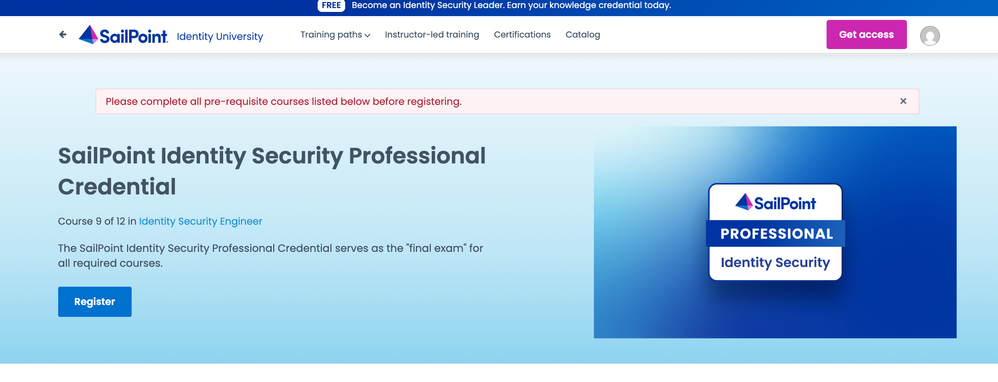
Step 4: Upon completing the required pre-reqs, you will be able to select the Launch button
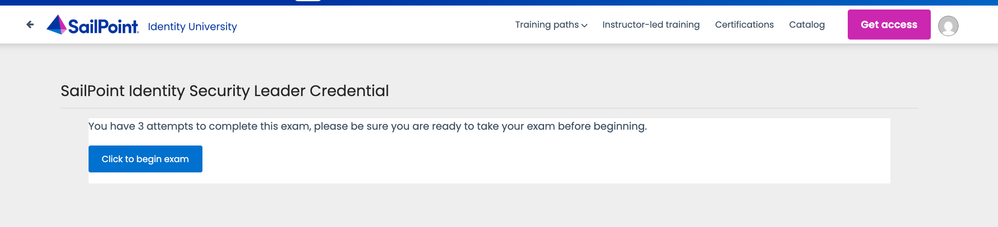
Step 5: When you are ready to begin your exam, click the button Click to begin exam". This action will begin your exam. Please note that once you begin this exam, you CANNOT pause the exam nor save and come back to it. You must complete this exam in one sitting.You also cannot go back to previous questions for review.
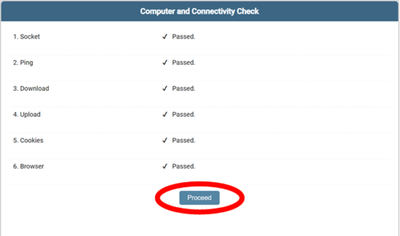
Step 6: The system will check that you have adequate internet parameters for an uninterrupted testing experience. Once the check is complete, click Proceed.
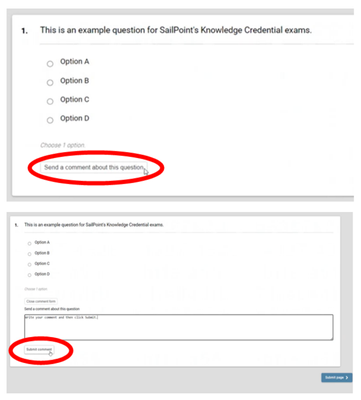
You will also have the option to comment on certain questions of the exam.
For resources and additional questions, please check out the SailPoint Certified Identity Professional Program and our FAQs on Compass.