Knowledge Article
Access Modeling Best Practices
Author
ryan_cutter
SailPoint
Access Modeling can help you define your Role-Based Identity Security on DAY 1. All your tenant needs to get started are Identities that have associated entitlements. Let AI do the rest- starting with Common Access and then exploring both Specialized and Auto Role Discovery sessions!

Why Access Modeling?
AI-Driven Access Modeling is a powerful tool for optimizing your Role-Based Identity Security model, demonstrating how organized your access can be, speeding up your certification and access request processes while still enforcing least-privilege.
Many organizations understand the importance of certifying all access for their identities, but without an organized access model it can become quite tedious reviewing access one entitlement at a time. The same can be said of Access Requests. Wouldn’t it be easier for a user to request a role that contains pertinent access to their job function versus having to make multiple individual access requests that then have to go through their own approval process for each of those individual access items?
This is where SailPoint’s AI-Driven Access Modeling can help. Organizing access into a scalable Role-Based Identity Security model will greatly reduce certification and access request fatigue. Furthermore, you can curate exactly which access is a good fit for Roles and which access should remain requestable “ad-hoc” to prevent over provisioning.
Defining populations
You can decide where you want to point the AI “flashlight” to uncover potential roles. To do this, build a population via Identity Security Cloud Search (Figure 1) or the Discover Roles button found in Role Insights, (Figure 2). This should be leveraged when looking to uncover Common Access and/or more focused Specialized Access.
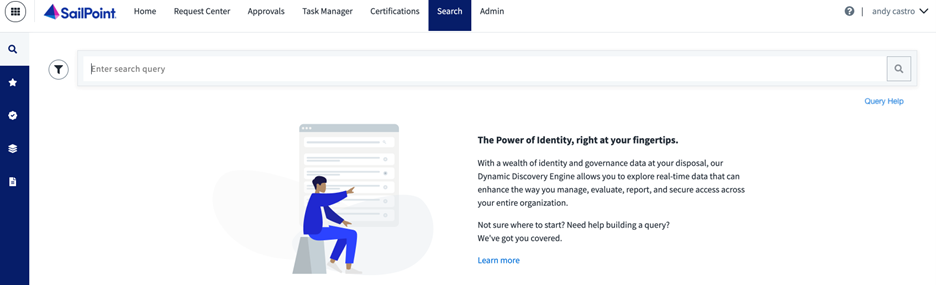
Figure 1 ISC Search for Building Populations

Figure 2 Role Insights for Building Populations
Auto Role Discovery, on the other hand, removes this step altogether and will display roles that AI “sees” in your tenant without the user having to define a population. More on this later.
Common access
Common Access is a great tool for getting the low hanging fruit out of the way. Let’s say you want to know what AI thinks a good role for your Finance department would be. If we were to run a scoped, Specialized Role Discovery session for a “Department = Finance” population, AI would indeed find access patterns that pertain to that population. However, because identities in that population would share access that is popular throughout the tenant (ie the entitlement “All Domain Users”) and not just the Finance Department, a user would have to manually choose to exclude these common entitlements one by one every time they run a Specialized Role Discovery session.
To alleviate this burden, start with a Common Access session. Roles created via this type of session can now have a “Common Access” flag associated with them which tells AI to auto-exclude these entitlements during Specialized Role Discovery. Furthermore, if you already know of access that will be common throughout the tenant, you can always manually create a role add those popular access profiles/entitlements, and designate it Common Access to achieve the same goal. Note that in both cases, there is some processing time that must be completed before any newly created role can be marked “Common Access”.
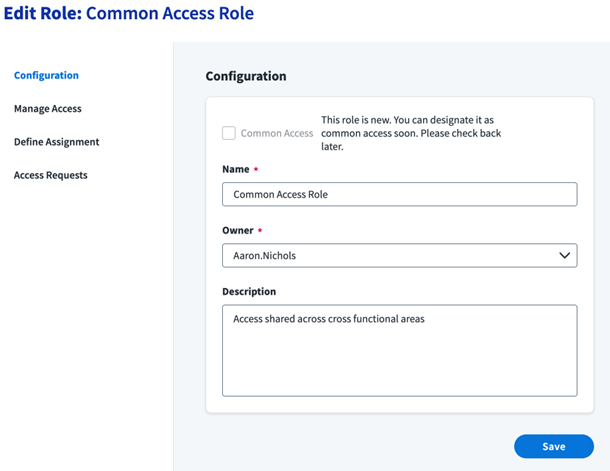
Figure 3 Manually Creating Common Access Role
Specialized access
Now that Common Access is out of the way, you are ready to use Specialized Role Discovery for more focused populations in your tenant (i.e. roles based off Departments/Job Titles/Locations/Managers/etc.). Start by building the populations, either via ISC Search or the Role Insights Discover Roles button and clicking “Discover Specialized Roles.” AI will now leverage SailPoint’s Peer Group Analysis to find potential roles. Use the “Minimum Number of Identities” and “Role Granularity” controls to define criteria that tells AI the percentage of entitlement overlap, and minimum number of identities needed to qualify for a potential role. Lower percentage overlap results in more highly populated roles while a high percentage overlap means fewer identities will meet the criteria thus resulting in lower populated roles.
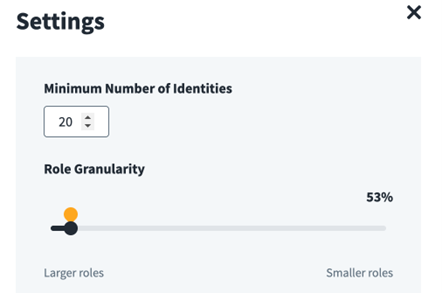
Figure 4 Specialized Role Discovery Session Criteria
By default, AI will calculate an optimized spot for your “Role Granularity” and default the slider to the orange circle. This can be manually overwritten by sliding the bar to percentages of your choice. Also note that the “Minimum Number of Identities” defaults to 20, as shown in Figure 4. If no results are returned with this value, try bringing that number down incrementally to explore other possible results.
Auto role discovery
Unsure what population to start with to uncover new roles? Not a problem! Auto Role Discovery, found on the Role Insights page, (Figure 5), is a way to leverage Peer Group Analysis without having to define a population. Note, these roles exclude Common Access.
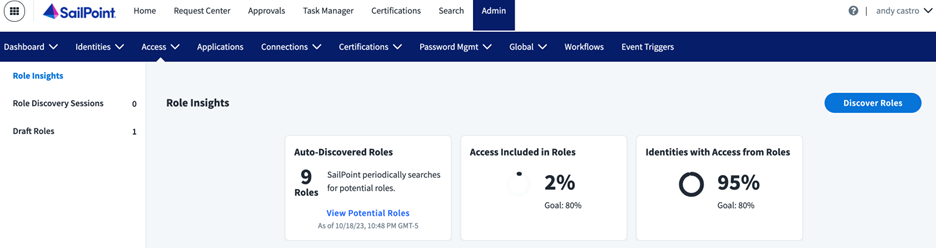
Figure 5 Auto-Discovered Roles
Auto Role Discovery is a great option to begin exploring focused access patterns uncovered by AI. Clicking the “Auto-Discovered Roles” card will display all the potential communities of access that AI sees in your tenant.
Specialized and auto-discovered role identity attributes
For both the Specialized and Auto-Discovered Role discovery experience, AI will present a breakdown of Identity attribute popularity that you can use to help define membership criteria for your role.
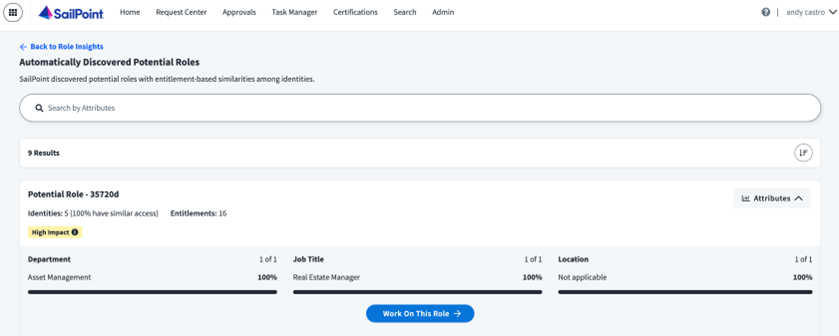
Figure 6 Identity Attribute Breakdown
In Figure 6, we can see that all identities in this Auto Discovered potential role are in the “Asset Management Department” and have “Real Estate Manager” job titles. We can now leverage this information to define membership criteria for our role. It is best practice to have membership criteria-based roles that identities can qualify in and out of as opposed to roles with a static list of identities which can become stale and unscalable.
Creating your roles
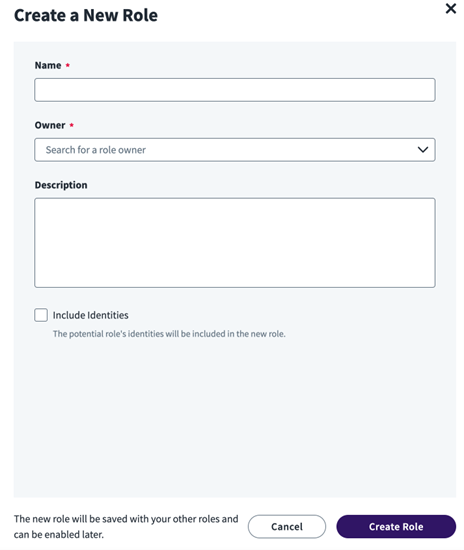
Figure 7 Role Creation
When it’s time to create your role, it is best practice to use a standardized naming and description convention. Also, note that clicking the “Include Identities” check box, shown in Figure 7, will result in an enabled role with a static list of identities. For this reason, it is best practice to leave this unchecked.
Role insights
AI-Driven Access Modeling can also help with your current role structure as well. SailPoint’s Role Insights feature will monitor the access identities received from roles and the access they have outside of roles. If it is determined that there is access that all or most of the identities in a role already possess, it will recommend that you consider adding these entitlements to the role. As you add these stray entitlements to roles the “Access Include in Roles” and “Identities with Access from Roles” percentage metrics will increase, tracking the optimization health of your Role-Based Identity Security model program.
In a nutshell:
- Less is more. Not everyone needs a role.
- Enforce least privilege.
- Prevent role proliferation.
- Know your scope. What are you trying to achieve by implementing an RBAC model? Are you wanting to reduce Certification fatigue? Expedite Access Requests?
- Include your subject matter experts in the process.
- Get pre-approval to combine applications into roles.
Bon voyage!

Whether it be Common Access, Specialized Access, or Auto Discovered Roles, knowing how to leverage SailPoint’s AI-Driven Access Modeling can optimize your user experience and help you begin your journey towards a scalable Role-Based Identity Security model for your organization on DAY 1!
Author: Andy Castro